




Canva Magic Morph turns text into textured artwork from a short written prompt, and you now find it inside Ask Canva.
- Select your text, click Ask Canva on the toolbar and ask it to use Magic Morph.
- Describe the look you want, like “glossy hot pink Barbie-style letters”.
- Canva applies the effect and swaps your text for an image version.
- Magic Morph now lives inside Canva’s AI assistant rather than as a separate app.
- It works best on one or two short, bold words, not body text.
Some headlines deserve more than a nice font. A seasonal pin, a freebie cover, a carousel slide that needs to stop the scroll. Normally that means hunting for the perfect graphic or wrestling with a design app you don’t really know.
Canva Magic Morph skips all that. You type what you want your words to look like, and Canva’s AI rebuilds them in that texture. Glossy chrome, candy, dried flowers, a salted margarita rim if you’re feeling on-brand. 🍹
In this guide I’ll show you where Magic Morph lives now, how to use it step by step, give you prompt ideas that actually work, and cover the limitations to know before you build a whole pin template around it.

What Is Canva Magic Morph?
Magic Morph is a Canva AI feature that applies a generated texture or effect to text and shapes, based on a written prompt. Instead of choosing from preset text effects, you describe the look in your own words and Canva generates it.
If you’ve gone looking for the old Magic Morph app and come up empty, you’re not imagining it. Magic Morph now lives inside Ask Canva, Canva’s AI assistant, so you ask for it in plain words instead of opening a separate tool.
It’s designed for moments of flair rather than everyday brand design. Think one standout word on a pin, not your whole blog graphic. Used that way, it’s a quick way to make a design feel custom without any design skills.
Related: Canva Magic Studio: The Game-Changing Design Tool You’ve Been Waiting For
How to Use Magic Morph in Canva
Prerequisites: a Canva design with the word you want to transform. Canva’s AI features use your plan’s AI credits.
- Open your design and add the text or shape you want to morph. Short, chunky words in a bold font give the clearest results.
- Select your text so Canva knows exactly what to transform.
- Click Ask Canva on the small toolbar that appears above your selection. The Canva AI panel opens on the left.
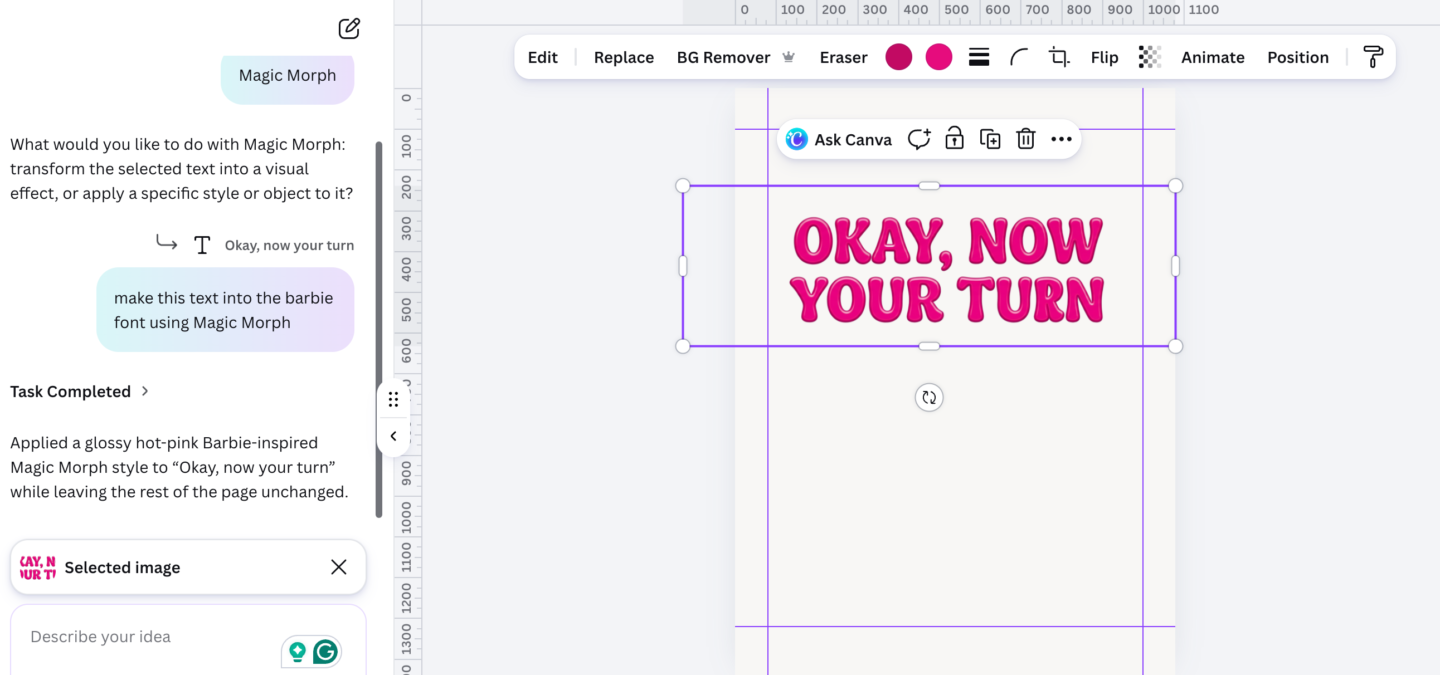
- Ask for Magic Morph by name and describe the look, for example: make this text glossy hot pink Barbie-style letters using Magic Morph.
- Let Canva apply it. It transforms your selected text and leaves the rest of the page as it was.
- Not quite right? Ask again with a more specific texture or colour, or undo and try a new prompt.
I tested this with the words “Okay, now your turn” and asked for Barbie-style lettering. Canva came back with glossy, bubbly hot pink letters in seconds, and the toolbar switched to image tools (Replace, BG Remover, Eraser), which tells you the text is now an image.
Because your morphed text becomes an image, duplicate your text box before you start. That way you still have an editable version if you need to change the words later.
Magic Morph Prompt Ideas That Work
The best Magic Morph prompts name a material or texture, plus a colour. Vague prompts like “make it pretty” give vague results, because the AI has nothing specific to build.
| Try this prompt | Best for |
|---|---|
| glossy hot pink Barbie-style letters | Fun, girly pin headlines and carousel covers |
| glossy hot pink chrome | Bold pin headlines, launch graphics |
| pressed dried flowers | Spring content, lifestyle and wellness pins |
| iced drink with citrus slices | Summer posts, anything a little bit spicy |
| pink neon sign | Instagram carousel covers, event graphics |
| gold foil balloons | Milestones, birthdays, celebrations |
| chunky knitted wool | Autumn and winter seasonal content |
| embroidered thread | Handmade, craft and slow-living niches |
| pastel candy sprinkles | Freebie covers, fun giveaways |
Match the prompt to your brand colours where you can. A “glossy chrome” effect in your exact pink looks intentional. A random rainbow effect looks like a stock template.
Where Magic Morph Works Best for Bloggers
Magic Morph earns its place when one word needs to carry the whole design. These are the spots where it pulls its weight:
- Pinterest pins: morph one keyword in the headline (like “SPICY” or “FREE”) and keep the rest in your brand fonts, so the pin still reads clearly in a busy feed.
- Freebie and ebook covers: a textured title makes a lead magnet feel like a premium product.
- Seasonal graphics: swap the prompt for each season (flowers, citrus, wool) and reuse the same template all year.
- Carousel covers: a morphed first word on slide one gives people a reason to stop scrolling.
Keep it to one morphed element per design. When everything is textured, nothing stands out, and your pins start looking less like your brand and more like an AI experiment.
Related: How to Change All Fonts in Canva at Once (the One-Click Trick)
Canva Magic Morph Limitations to Know
Magic Morph is fun, but it isn’t magic for every job. Know these before you rely on it:
- It uses your AI credits, so heavy experimenting adds up. Check your plan’s AI allowance if you use it a lot.
- The result is an image, not editable text. Typos or wording changes mean morphing again.
- It doesn’t follow your Brand Kit automatically. You steer colours through your prompt, not your brand settings.
- Small or long text gets messy. It’s designed for short, bold words, not sentences.
- Screen readers can’t read it. Because it’s an image, add descriptive alt text wherever you publish it.
One morphed word is a glow-up. A whole morphed design is a mess
Related: How I Saved 10 Hours a Month using Canva Magic Expand
FAQ: Canva Magic Morph
Where is Magic Morph in Canva now?
Magic Morph is now part of Ask Canva, Canva’s AI assistant. Select your text, click Ask Canva on the toolbar, and ask it to use Magic Morph with the look you want.
Can you edit text after using Magic Morph?
Not the morphed version. Magic Morph adds your result to the design as an image, so to change the words you need to edit your original text and morph it again. Keep the original text layer so you can.
Why can’t I find the Magic Morph app in Canva?
Because it no longer works as a separate app for most people. Use Ask Canva instead and mention Magic Morph in your request. If Ask Canva doesn’t appear on a team account, an admin may have turned off AI features.
Key Takeaways
- Canva Magic Morph now lives in Ask Canva: select your text, click Ask Canva and describe the look you want.
- The best prompts name a texture and a colour, and it works best on one or two bold words, not body text.
- The result is an image, so keep your original text and add alt text when you publish.
Canva Magic Morph is the quickest way to give a single word real personality, no design skills required. Pick one word, name the texture, match it to your brand colours, and let that word do the heavy lifting on your next pin. ✨
Want pins that look this good every week?
My Pinterest Canva templates are ready to brand and drop your Magic Morph headline into, so you spend minutes on pins, not hours.
Shop Pinterest templates





One Response
I use Canva all the time, but there are still so many features I haven’t explored! Magic Morph looks like such a fun way to add personality to graphics and text. I’ll definitely have to play around with it!