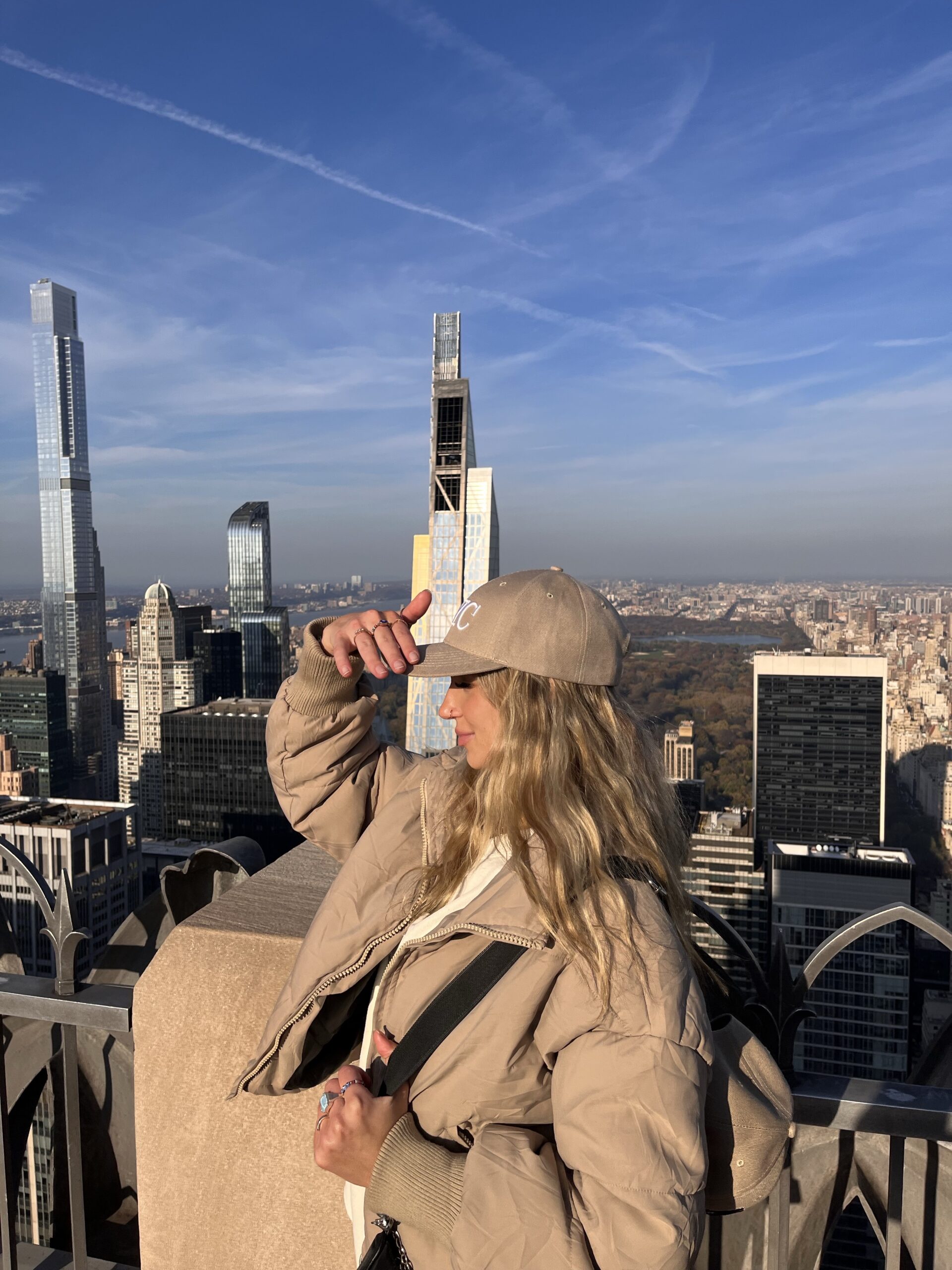




If you have ever struggled with cropping an image too tightly or needed to stretch the background to fit a design, Canva Magic Expand is about to become your new favourite tool. Whether you are a content creator, a blogger, or a small business owner, this AI-powered feature can help you repurpose and enhance images effortlessly.
In this guide, we will walk through how Canva Magic Expand works, how to use it effectively, and practical ways to incorporate it into your content strategy and turn a vertical shot into a horizontal design.

What is Canva Magic Expand?
Canva Magic Expand is an AI-powered tool that allows users to extend the background of an image seamlessly. Instead of manually editing or resizing images to fix awkward framing, this tool intelligently fills in the missing space, making it easy to create visually appealing graphics without stretching or distorting your original content.
This feature is particularly useful for bloggers, social media managers, and designers who need to adjust images to fit different aspect ratios while maintaining a polished and professional look.
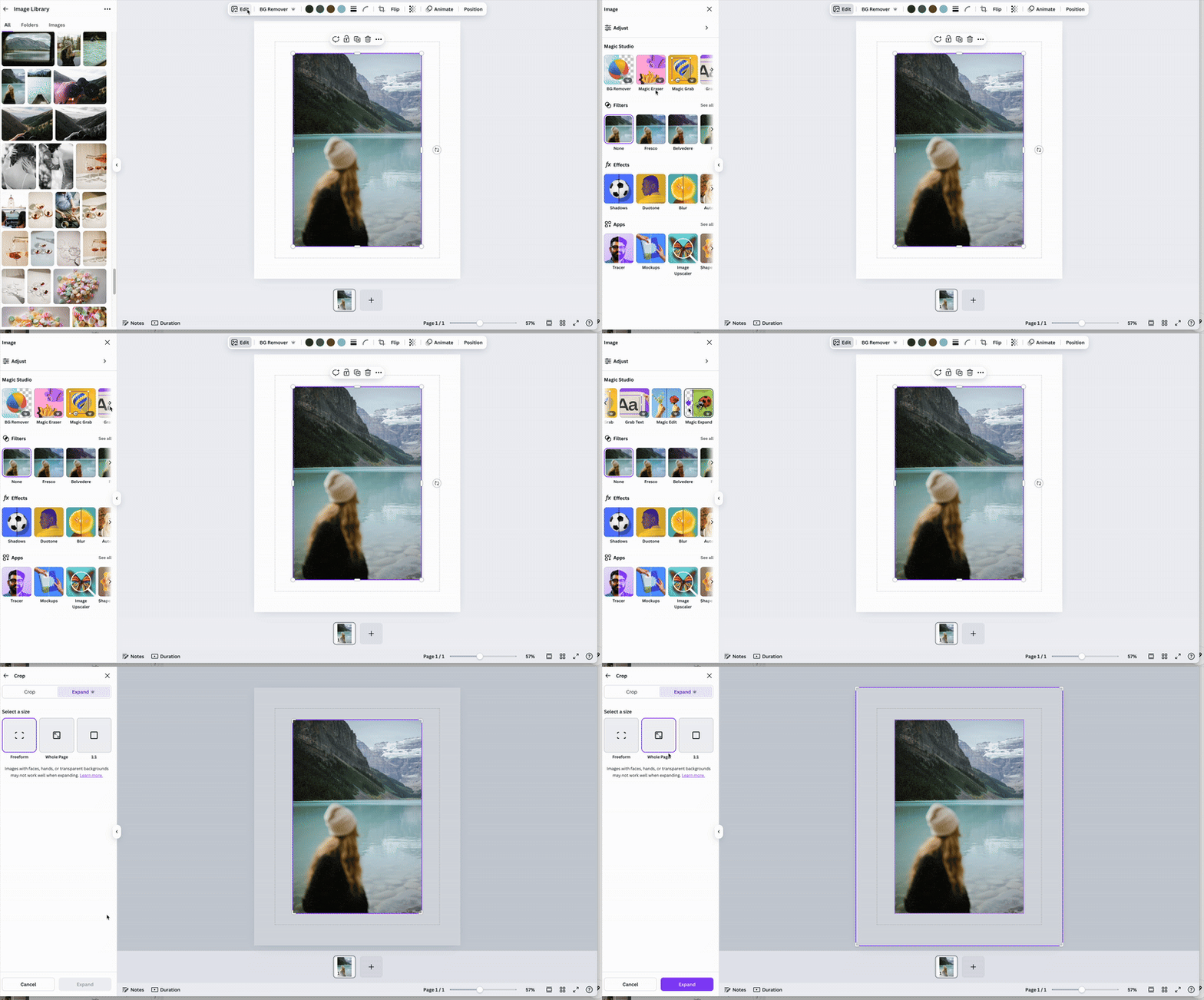
How to Use Canva Magic Expand
Using Canva Magic Expand is simple and does not require any advanced design skills. Follow these steps to make the most of this feature:
Step 1: Upload Your Image
Start by opening Canva and selecting the design format you need. Upload your image or choose one from Canva’s extensive library.
Step 2: Select the Magic Expand Tool
Once your image is on the canvas, click on the image to reveal the editing toolbar. Locate the “Magic Expand” option under the AI tools section.
Step 3: Adjust the Expansion Area
Drag the edges of the image to expand the background. Canva’s AI will generate additional elements that seamlessly blend with the original image.
Step 4: Fine-Tune the Details
After the expansion, you can adjust the position, apply filters, or tweak colours to ensure the image aligns with your branding.
Step 5: Download and Use
Once satisfied with the edits, download your image in high resolution and incorporate it into your blog, social media posts, or marketing materials.
Ways to Use Canva Magic Expand in Your Content Strategy
Here are a few ways you can use Magic Expand as a creator by expanding images for various visual content.
1. Optimise Images for Multiple Platforms
Different platforms require different image sizes. Instead of cropping essential details, use Magic Expand to adjust images for Instagram, Pinterest, and blog posts without losing quality.
2. Enhance Blog Graphics
If you need a full-width feature image, but your original photo does not fit, Magic Expand helps extend the background while keeping the composition intact.
3. Improve Product Photography
For e-commerce or digital product mockups, this tool can create clean, professional backgrounds without needing a separate photo shoot.
4. Repurpose Old Content
If you have high-performing images that need a refresh, use Magic Expand to update and resize them for new marketing campaigns.
5. Create Consistent Branding
Maintaining a cohesive aesthetic across all visuals is crucial for brand identity. Magic Expand allows you to adjust images to match your existing designs seamlessly.
Pro Tips for Maximising Magic Expand
Try These Keyboard Shortcuts to Save Time
Speed up your workflow with these Canva hotkeys:
- Ctrl/Cmd + C/V: Copy/paste elements.
- Ctrl/Cmd + D: Duplicate selected item.
- Ctrl/Cmd + G: Group multiple elements.
- Ctrl/Cmd + [ or ]: Layer objects backward/forward.
- Z + Drag: Zoom in/out on specific areas.
Bonus Tip: Master these to design 2x faster (and impress your followers with your “pro skills” ).