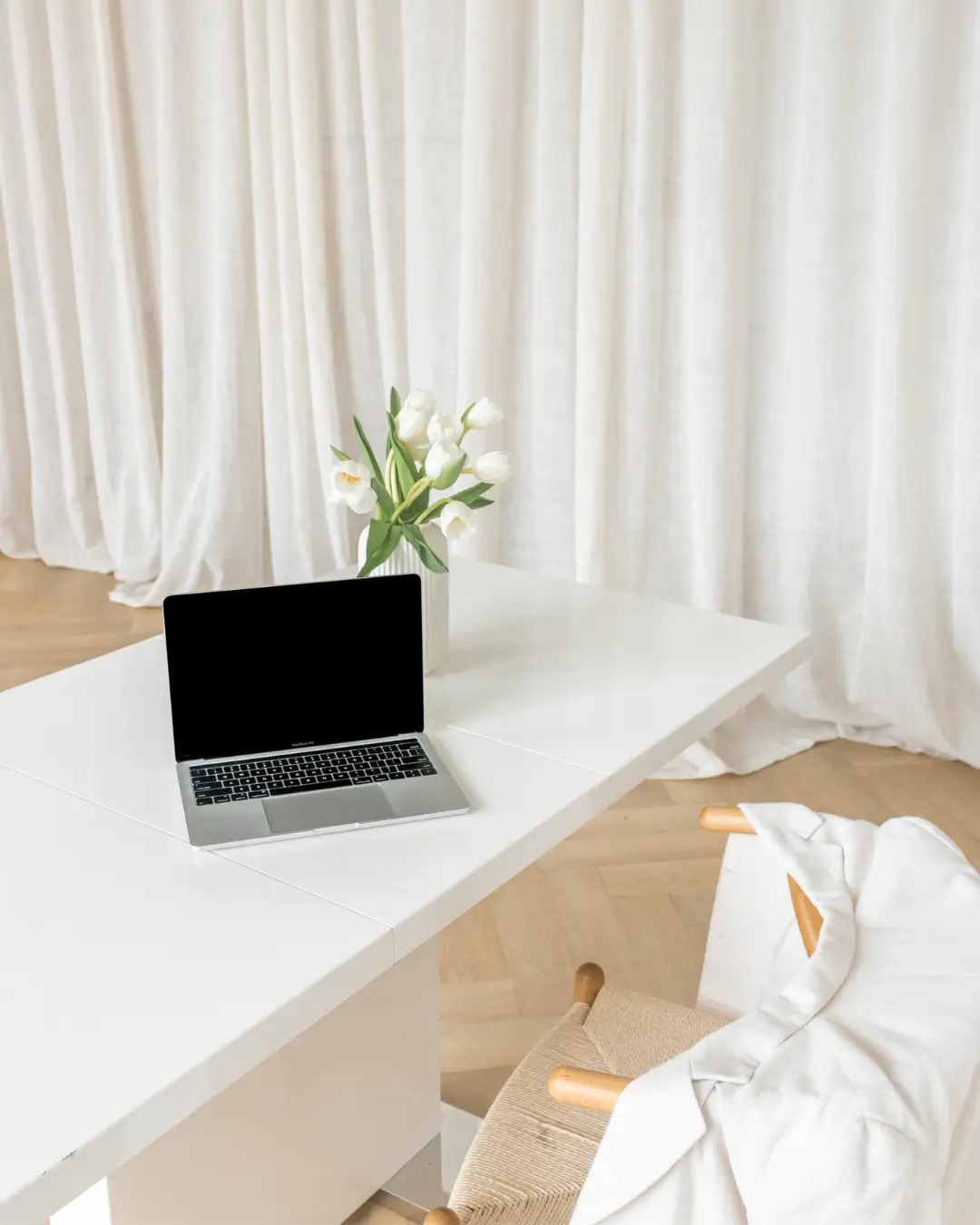



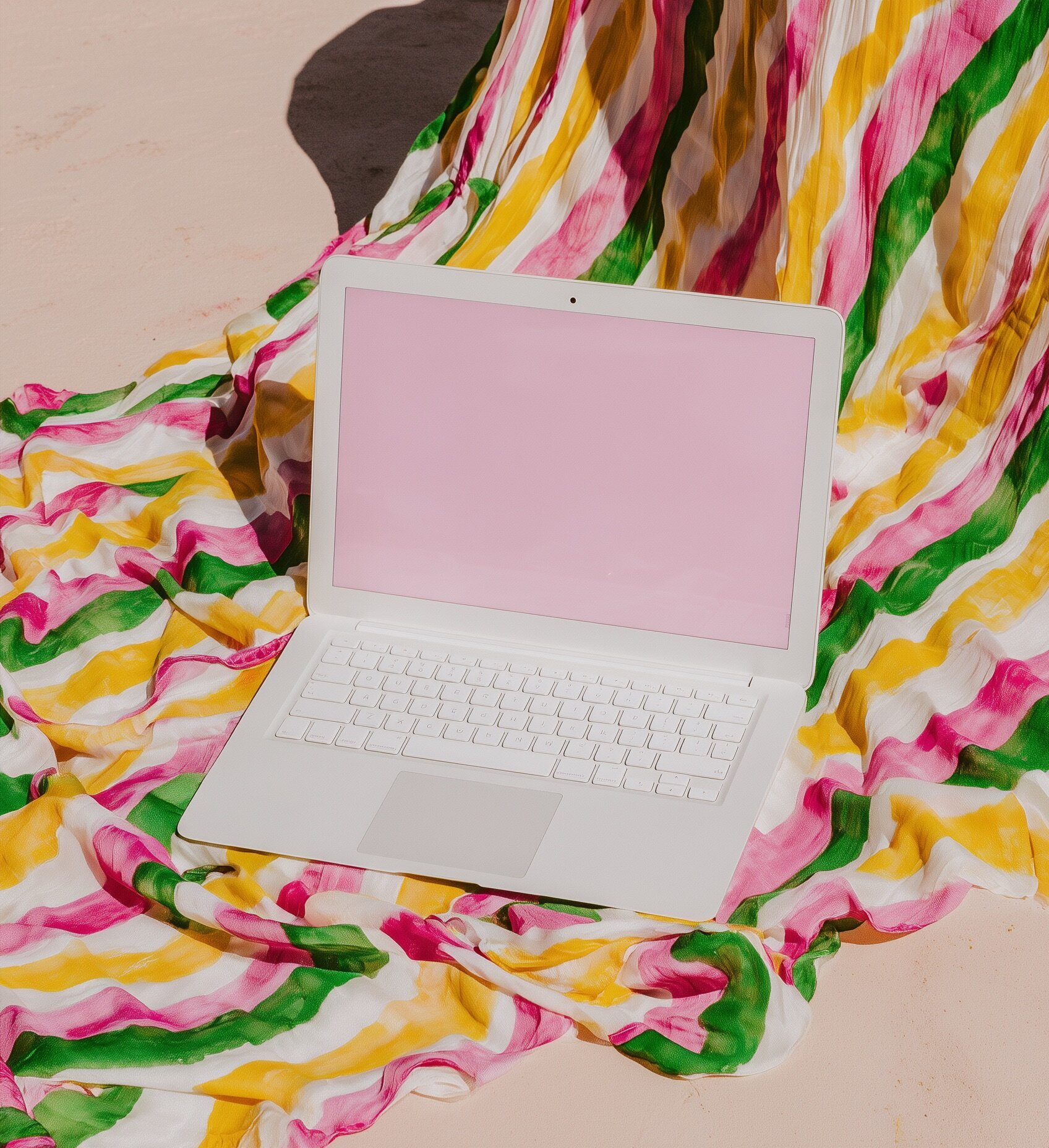
If you’re a blogger or content creator, you’ve probably heard people rave about mockups. Those dreamy “laptop on a white desk” or “phone in a cosy flatlay” images that make your designs look instantly polished, even if you created them in your sweatpants after work.
The only problem is that a lot of mockup tools are either pricey, overly complicated, or leave your graphics looking a little… 2012.
That is where free mockup websites come in. With the right tools, you can drop your design into a realistic scene in minutes and have a scroll‑stopping graphic ready for your blog, Pinterest, Instagram, or sales page.
In this post, you’ll discover 3 amazing websites to create free mockups for your next design project so you can:
- Showcase your designs in real‑life settings
- Save time creating on‑brand visuals for your content
- Elevate your blog and offers without booking a full photoshoot
Let’s walk through each website, who it is best for, and how to get the most out of it.
What is a mockup and why does it matter?
A mockup is a styled image that shows your design as if it existed in real life.
Instead of posting a flat graphic on a plain background, you can display it:
- On a laptop screen sitting on a desk
- On a phone in someone’s hand
- Inside a tablet on a coffee table
- Printed in a frame on a wall
Mockups help you:
- Make your brand look more professional and cohesive
- Help your audience instantly picture how your offer fits into their life
- Reuse one design across multiple platforms with very little extra effort
If you are creating blog graphics, Pinterest pins, digital products, social posts, or client work, mockups are one of the easiest upgrades you can make to your visuals without needing advanced design skills.
3 Websites to Create Free Mockups
As promised, here are our top recommendations for free mockup websites.
1. Smartmockups
Smartmockups is a user‑friendly mockup tool with hundreds of free templates for tech devices, print products, packaging, social media and more.
Why you’ll love it
Smartmockups feels clean and intuitive, even if you don’t consider yourself a “designer”. You can filter by category, orientation and style, then simply upload your design and watch it snap into place.
You also get:
- A huge variety of device mockups, like laptops, desktops, phones and tablets
- Simple controls to crop, zoom, and reposition your design
- The option to tweak background colours and image quality
If you use Canva, you can even send designs directly from Canva into Smartmockups, which makes the whole process much faster.
Best for
Smartmockups is ideal if you want:
- Realistic device mockups for blog posts and sales pages
- Clean, minimal scenes that keep the focus on your design
- Quick graphics for Pinterest, Instagram and email without a long learning curve
How to use Smartmockups for your next design
- Create your design in Canva or your favourite design tool.
- Open Smartmockups and browse categories like “Computer”, “Phone” or “Print”.
- Choose a mockup that matches your brand vibe and orientation (horizontal or vertical).
- Upload your design or use the Canva integration to import it.
- Adjust the crop, background colour, and settings, then download your final mockup.
Pro tip: Save a handful of favourite mockups and reuse them across different posts. This keeps your visuals consistent and recognisable, without you reinventing the wheel every time.
2. Placeit
Placeit is a massive mockup and template library with everything from tech scenes to apparel, packaging and social media graphics. It has a paid plan, but there are plenty of free mockups to test before you commit.
Why you’ll love it
Placeit shines if you want lifestyle‑driven mockups that feel like real people using your product or reading your blog.
You’ll find:
- Thousands of mockups across almost any category you can imagine
- People‑focused scenes that add personality and relatability to your graphics
- Extra options for text and layouts if you want to design inside Placeit
This is especially useful if your brand leans more “cosy lifestyle blogger” than “minimal tech startup”.
Best for
Placeit is a great fit if you:
- Want mockups that feel warm, lived‑in and human
- Need scenes for course launches, digital products or service pages
- Like the idea of your designs appearing on mugs, notebooks, t‑shirts and more
How to use Placeit for your content
- Go to the mockup section and filter by device, category and free templates.
- Choose a scene that looks like something your audience would actually be doing.
- Upload your design and use the built‑in tools to resize or reposition it.
- Edit any text or background elements the template allows you to change.
- Download your mockup and add it to your blog post, landing page or social media.
Pro tip: Pick 1 to 3 “signature” lifestyle mockups for your core offers. Reusing them creates visual consistency and saves decision fatigue when you are in a low‑energy season.
3. Canva’s Smart Mockups
If you already live inside Canva for everything, Canva’s built‑in Smart Mockups is the simplest way to transform your designs into mockups without opening another tab.
Why you’ll love it
You don’t need an extra account, tool, or login. You can design and mock up everything inside one platform.
With Canva’s Smart Mockups, you can:
- Turn any design into a device, frame or product mockup
- Quickly test different options before you download
- Batch a whole set of graphics in one sitting
It’s not as extensive as a dedicated mockup site, but for everyday content it is more than enough.
Best for
Canva mockups are perfect if you:
- Want the easiest possible workflow with the fewest tools
- Create a high volume of pins, social posts and email graphics
- Prefer clean, minimal mockups that match Canva’s existing templates
How to use Canva mockups
- Design your graphic in Canva as you normally would.
- When you are happy with it, select the element or group you want to turn into a mockup.
- Click “Edit image” and look for the Smart Mockups options.
- Choose a device or frame that suits your design and apply it.
- Adjust any settings that appear, then download in your preferred size and format.
Pro tip: Create a few “mockup‑ready” Canva templates where the main design area is already sized perfectly for your favourite laptop or phone mockups. That way, new graphics drop in without endless resizing.
How to choose the right mockup website for you
All three of these tools can help your designs look more professional, but they each have their own sweet spot.
- Choose Smartmockups if you want clean, minimal device and print mockups that look modern and polished.
- Choose Placeit if you love lifestyle photos, cosy scenes and real‑person context for your products.
- Choose Canva’s Smart Mockups if you prefer an all‑in‑one workflow and don’t want to leave Canva at all.
You also don’t have to pick just one. Test the same design in all three tools, compare the final images, and notice which one feels most “on brand” for you.
Final thoughts
Mockups are one of those small upgrades that can completely change how your content feels. Instead of another flat graphic that gets scrolled past, you get visuals that feel intentional, styled and put‑together.
Whether you are refreshing old blog posts, creating new Pinterest pins, or launching a digital product, these 3 free mockup websites give you everything you need to:
- Look more professional online
- Save time on design
- Share your work with a lot more confidence
Pick one tool to try with your very next blog graphic and see how it changes the way your content shows up.




9 Responses
I love Canva! I don’t know the rest of this so I’ll have to check them out.JenniferCurated By Jennifer
Canva is just such a brilliant tool.
This is one area I can’t get my head round at all x
Ah, I hope you find these websites useful
I love Canva – I use it for so much esp for IG reels right now xx
So glad you enjoying it
I’ve never even thought about using a mock up! xBeautylymin
They are brilliant and can be used for so many designs
This would actually be really helpful for seeing how things will look when they’re published!Jasmine xx