


Ever scroll past a product mockup on Instagram and think, “How do they make it look so professional?” Here’s the secret: you don’t need Photoshop or a design degree to create stunning branded visuals. Canva makes it surprisingly easy to showcase your digital products, social media templates, or even your freebies in polished, scroll-stopping mockups.
In this post, I’ll walk you through how to use Canva step-by-step to create mockups that look like you hired a designer—without actually needing one. Whether you’re launching a new digital product or want to elevate your brand presence online, this is the creative shortcut you’ve been waiting for.
What is Canva?
Canva is a free graphic design platform that allows you to easily create invitations, business cards, flyers, social media graphics, and more using professionally designed templates.
You can even upload your own photos and add them to Canva’s templates using a drag-and-drop interface. It’s like having a basic version of Photoshop that’s free and doesn’t require extensive photo editing knowledge to use.
Related: How to Build a Canva Brand Kit
How to Create Branded Mockups Using Canva
Here’s exactly how you can create jaw-dropping on-brand mockups using your Canva account.
Step One
Pull up the page you’d like to record and use the Window Resizer Chrome extension, which allows you to resize your window for the device mockup you’ll be using.
Step Two
Using Loom or another screen recording software of your choice, record a video clip of you scrolling through the page you want to feature. Save the video to your computer. If you have a Mac or iPhone, simply use the built-in recording tool to take a screen record.

Step Three
Open up a new design in Canva (any size is fine, choose whichever you’re designing for).
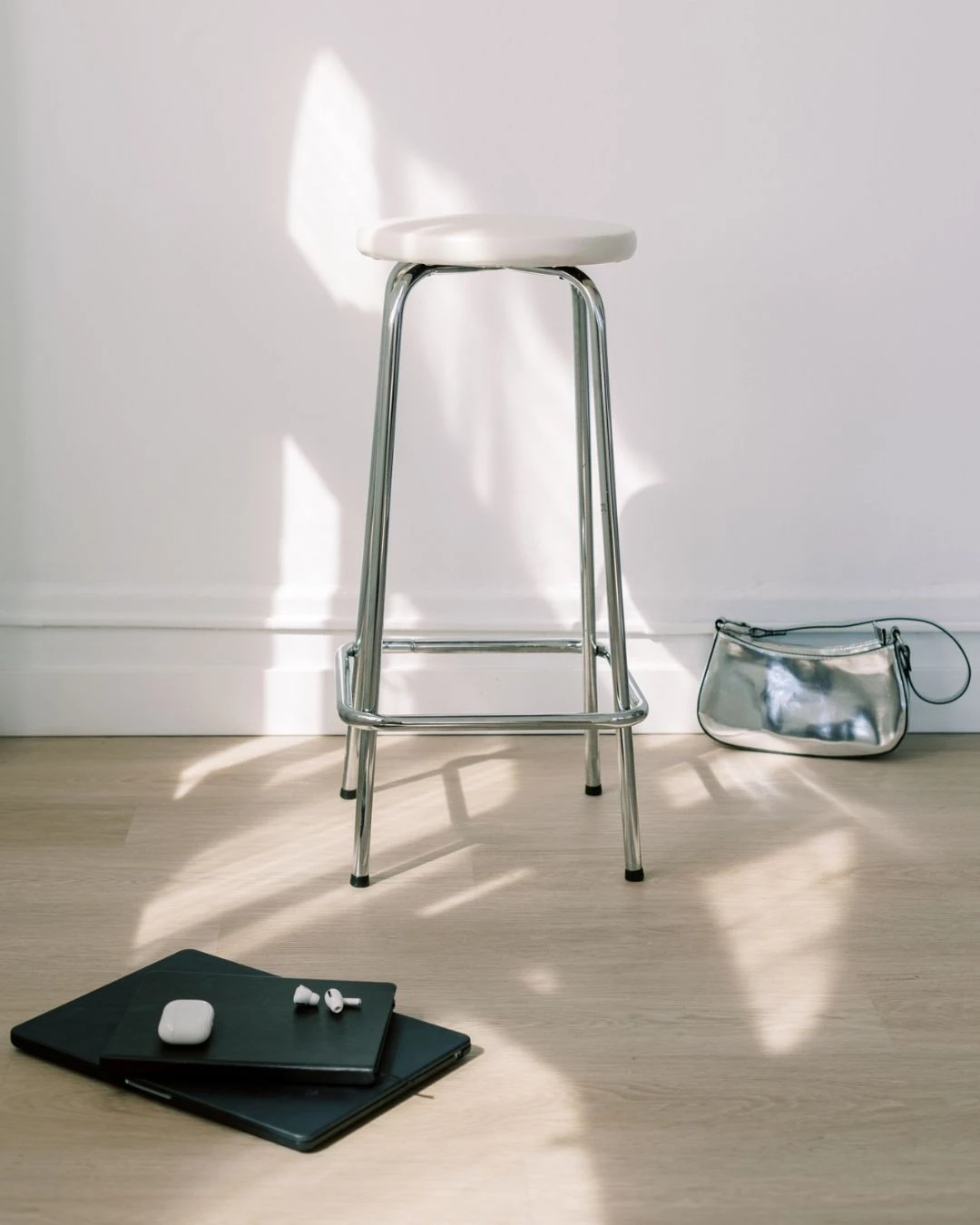
Select a mockup frame or tech mockup scene in Canva, or bring in a template you’ve purchased. You can find gorgeous mockup-styled photography for free on Pexels or Unsplash. I am using styled stock images from Vault Socials and Hautestock (if you want to know more about Hautestock, click here).
Upload your video or screenshot to Canva and drag and drop it into your tech frame.
Step Six
Now you can crop and position it the way you want it displayed.
Step Seven
Download as a GIF (preferred) or an MP4 video and upload it wherever you’d like to share!
Creating professional-looking mockups has never been easier! All of this can be done by using a free Canva account. To get access to even more, sign up for a free 30-day Canva Pro account here.
If you found this post useful, let me know in the comments below. I would love you hear from you!
Related: 15 Canva Digital Product Ideas to Make Passive Income






12 Responses
I really should use Canva more than I do, I tend to just make pins for Pinterest x
Canva is such a great platform
This is so helpful. I love Canva!JenniferCurated By Jennifer
This is such an informative post, thanks for sharing sweetie!Danielle | thereluctantblogger.co.uk
I really need to start using Canva. Your posts are so informative x
This is so informative! I need to experiment more on Canva! xxDanielle’s Beauty Blog
Thanks so much, glad you found it helpful x
As always…..thanks for the tips! x
Thanks so much Laura
Canva is my favourite website, so many different tools!
Oh my gosh – this is such a handy guide! I absolutely do not use Canva as well as I should but things like this help so much xx
Glad I could help 🙂