



Stop spending hours designing pins from scratch—there’s a smarter way to go viral on Pinterest.
I used to design every single pin manually. Each one took 15-20 minutes, and for one blog post I would spend 5+ hours on graphics alone.
Then I cracked the code to creating 50 scroll-stopping, click-worthy pins in 30 minutes flat.
No joke. No burnout. Just a simple system that actually works.
If you’re ready to turn one blog post into a Pinterest traffic machine without the time suck, this guide is for you.
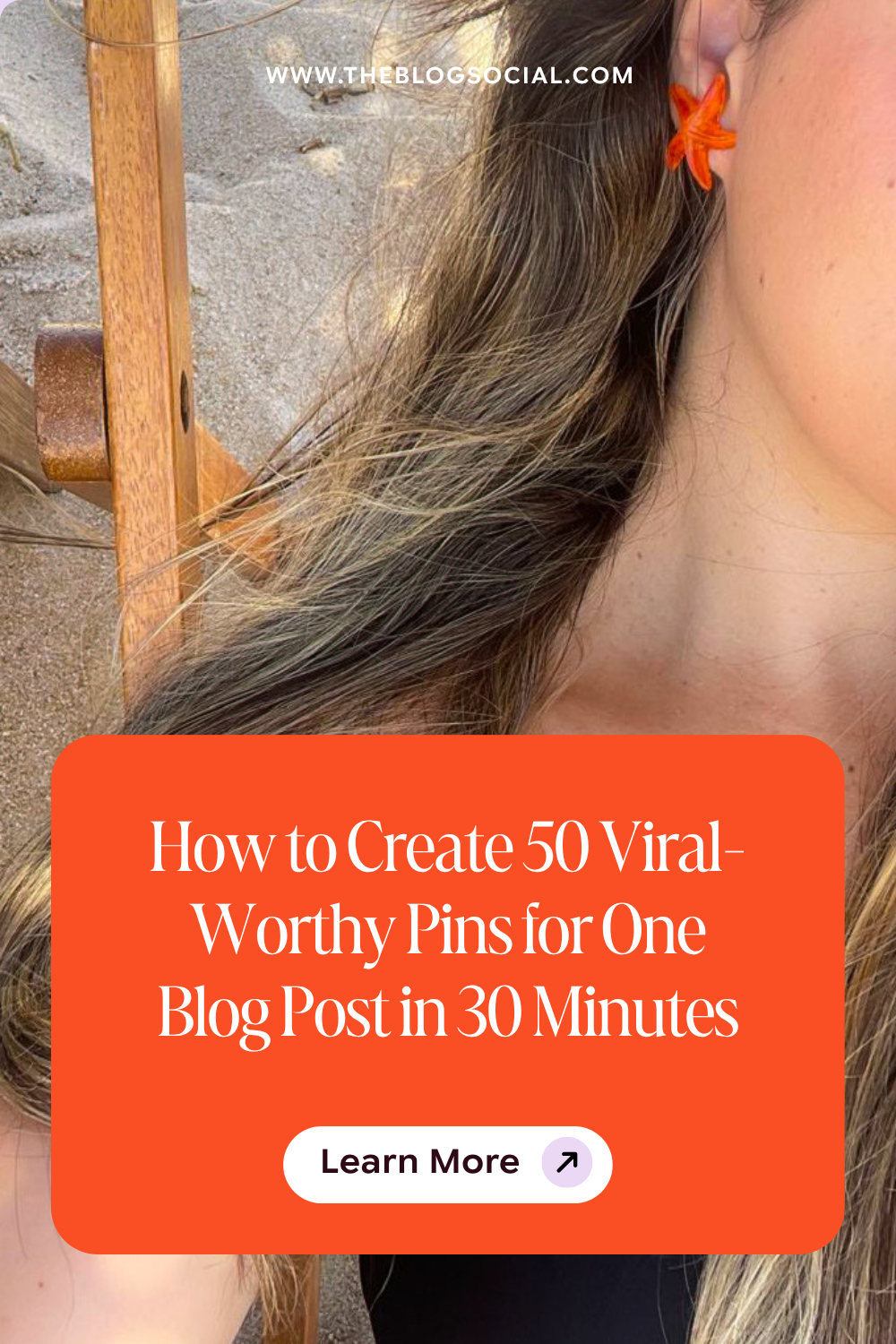
Why You Need 50 Pins for One Blog Post
I know what you’re thinking: “50 pins for ONE blog post? That’s excessive.”
Except it’s not. Here’s why.
Pinterest rewards fresh content. The more unique pins you create for a single URL, the more opportunities you have to:
- Test different designs and see what resonates
- Reach different segments of your audience
- Increase your chances of appearing in search results
- Drive consistent, passive income from blog traffic over time
Think about it like this: each pin is a mini billboard for your blog post. Would you rather have 5 billboards or 50?
More pins = more visibility = more clicks = more traffic.
Related: Pinterest SEO for Absolute Beginners: Optimising Your First 10 Pins
What Makes a Pin Go Viral on Pinterest?
Before we jump into the how, let’s talk about what actually drives traffic on Pinterest.
Because here’s the thing: viral pins aren’t about luck. They’re about strategy.
Pinterest is a visual search engine. Your pins need to be optimised for both humans (who scroll through feeds) and Pinterest’s algorithm (which decides what to show).
Viral pins share these characteristics:
- Eye-catching design: Bold colours, clear text, high contrast
- Keyword-rich titles and descriptions: SEO matters on Pinterest
- Multiple variations: Different designs = more chances to go viral
- Strategic pin scheduling: Consistency beats sporadic posting
- Value-driven content: Solve problems, answer questions, inspire action
When you understand what Pinterest prioritises, you can create pins that actually get seen.
Related: Pinterest vs. Other Social Media Platforms: Where Bloggers Should Focus in 2026
Common Mistakes That Kill Your Pinterest Traffic
Even with a solid system, small mistakes can tank your results.
Avoid these Pinterest pitfalls:
Mistake #1: Not Testing Different Designs
If you only create 5 pins per blog post, you’re limiting your reach.
Different designs appeal to different segments of your audience. Test multiple variations to see what works.
Mistake #2: Ignoring Pinterest SEO
Pretty pins won’t save you if they’re not optimised for search.
Always include keywords in your titles, descriptions, and board names.
Mistake #3: Posting Inconsistently
Posting 50 pins in one day, then disappearing for weeks? Pinterest hates that.
Consistency matters. Schedule pins to go out regularly over time.
Mistake #4: Using Low-Quality Images
Blurry, pixelated, or poorly cropped images hurt your credibility.
Use high-resolution stock photos or crisp graphics. Your visuals should look professional.
Mistake #5: Not Linking to Your Best Content
Don’t waste pins on weak blog posts.
Focus your Pinterest efforts on your highest-value content: tutorials, guides, listicles, and evergreen posts that solve real problems.
The 30-Minute System: How to Batch Create 50 Pins
Stop designing pins one at a time. Start batching like a pro.
Thirty minutes is the goal once you have your templates and system set up. The first time you run through this, it might take a little longer, and that is completely normal.
Let’s go.
Phase 1: Pinterest Canva Template Setup (10 Minutes)
Your first step is choosing the right Pinterest templates. This is where Canva saves your sanity and makes the design process easy.
Instead of starting from scratch every single time you create a new pin, grab a template pack that includes:
- Multiple layout options (text-heavy, image-heavy, minimal)
- Pre-set Pinterest dimensions (1000 x 1500 pixels)
- On-brand colors and fonts
- Easy-to-edit text boxes
I recommend using pre-designed Pinterest pins template bundles like our Minimal Pinterest Canva Templates or Emily Pinterest Canva Templates.
They are already sized correctly, tested on Pinterest, and ready to drop your copy into.
Here’s how to set up your templates:
- Open your Canva template pack
- Duplicate the base template 50 times (yes, really)
- Organise them into folders by blog post topic
- Rename each file with a clear naming convention like “Blog-Post-Title-Pin-01”
This might sound tedious, but it’s a one-time setup that saves hours down the line.
Phase 2: Design Customisation (10 Minutes)
Now comes the fun part: making each pin unique without reinventing the wheel.
The secret? Small tweaks create a wide variety.
Here’s what to change across your 50 pins:
- Headline variations: Use different hooks, questions, or benefits
- Colour schemes: Swap background colours or accent tones
- Images: Rotate stock photos, illustrations, or graphics
- Text placement: Move copy from top to bottom or side to side
- Font styles: Alternate between bold, script, or clean sans-serif
You don’t need to redesign everything. Just change 2-3 elements per pin.
Example headline variations for one blog post:
- “The Pinterest Strategy That Gets 50% More Traffic”
- “How to Drive Blog Traffic with Pinterest (Even as a Beginner)”
- “Stop Posting and Hoping—Start Pinning with Purpose”
- “Why Your Pins Aren’t Getting Clicks (And How to Fix It)”
- “Pinterest for Beginners: The Only Guide You Need”
See how each angle targets a slightly different search intent? That’s the magic.
Use our ChatGPT Prompts for Pinterest Marketing to generate headline variations in seconds, so you are not staring at a blank Canva file trying to “be creative” on demand.
Phase 3: Keyword Optimisation & Scheduling (10 Minutes)
Design is only half the battle. If your pins aren’t optimised for search, they won’t get seen.
This is where Pinterest SEO comes in.
Step 1: Research Your Keywords
Use tools like Pininspector to find high-volume, low-competition keywords in your niche.
Look for phrases your audience actually searches for:
- “How to create a pin”
- “Pinterest marketing strategy”
- “Pin design tips for beginners”
- “How to drive traffic on Pinterest”
These are examples. Swap in your own niche keywords so the phrases sound like something your readers would actually type into the search bar.
Step 2: Write Your Pin Titles and Descriptions
Each pin needs:
- A keyword-rich title (under 100 characters)
- A clear, compelling description (under 450 characters)
- A call-to-action that tells people what to do next
Don’t overthink it. Keep it simple and focused on value.
Example pin description:
“Stop wasting hours designing pins from scratch. With Canva templates, you can create scroll-stopping designs in minutes that drive clicks to your blog. Click here to read more and discover how to simplify your Pinterest marketing strategy.”
Step 3: Schedule Your Pins
Tools like BlogtoPin automate Pinterest scheduling so you can set it and forget it.
Upload your 50 pins, stagger them over weeks or months, and let the tool handle the rest.
Consistency matters more than volume.
Posting fresh pins regularly signals to Pinterest that you’re an active creator—which boosts your visibility.
Graphic Design Hacks That Make Pins Go Viral
Not a designer? No problem.
You don’t need a design degree to create pins that stop the scroll. You just need a few smart hacks.
Use High-Contrast Colors
Pinterest is a busy platform. Your pin needs to stand out in a sea of other content.
Bold, high-contrast colour combos grab attention fast:
- Navy + coral
- Black + yellow
- Deep purple + mint green
Avoid washed-out pastels or low-contrast pairings. They blend into the background.
Make Text Readable on Mobile
Over 80% of Pinterest users browse on mobile. If your text is too small or hard to read, you’re losing clicks.
Design rules for mobile-friendly pins:
- Use large, bold fonts (minimum 36pt for headlines)
- Limit text to 1-2 short sentences per pin
- Add a contrasting background behind the text for readability
- Avoid overly busy backgrounds that compete with your copy
Add a Clear Visual Hierarchy
Your pin should guide the eye in this order:
- Eye-catching image or graphic
- Bold headline that hooks attention
- Supporting text or CTA
Don’t cram too much information into one pin. Keep it clean, focused, and easy to scan.
Use Vertical Layouts
Pinterest favours vertical pins with a 2:3 aspect ratio (1000 x 1500 pixels).
Horizontal or square pins get less visibility in feeds, so stick with vertical for maximum reach.
Include a Logo or Brand Mark
Even if it’s small, adding your logo helps with brand recognition over time.
Place it subtly in a corner so it doesn’t distract from your main message.
How to Optimise Pins for Maximum Blog Traffic
Creating beautiful pins is one thing. Getting them to drive traffic is another.
Pinterest is a search engine first, social media platform second. That means SEO matters—a lot.
Write Keyword-Rich Pin Titles
Your pin title should include your primary keyword and clearly communicate the value of clicking through.
Good examples:
- “Pinterest Marketing Strategy: How to Drive 10K+ Monthly Visitors”
- “Learn Pinterest for Beginners: The Complete Guide”
- “Pin Design Tips That Actually Get Clicks”
Bad examples:
- “Check This Out”
- “You Need This”
- “Game-Changer”
Vague titles don’t tell Pinterest (or users) what your pin is about. Be specific.
Nail Your Pin Descriptions
Your pin description should:
- Start with a clear benefit or hook
- Include 2-3 relevant keywords naturally
- End with a CTA that encourages clicks
Example:
“Struggling to get blog traffic from Pinterest? This step-by-step Pinterest marketing strategy will show you exactly how to create pins that go viral, drive consistent traffic, and turn your blog into a passive income machine. Click here to learn more.”
Add Relevant Hashtags
Pinterest supports up to 20 hashtags per pin, but quality beats quantity.
Use 5-10 targeted hashtags that describe your content:
- #PinterestMarketing
- #BlogTraffic
- #PinterestForBeginners
- #PinterestTips
- #PassiveIncome
Link to High-Quality Blog Posts
Pinterest rewards pins that link to helpful, well-written content.
Make sure your blog post:
- Loads quickly on mobile
- Matches the promise of your pin
- Includes clear next steps or CTAs
- Offers genuine value (not just fluff)
If your blog post disappoints, people won’t engage—and Pinterest will stop showing your pins.
Monitor Your Pinterest Analytics
Check which pins are performing best and create more variations of those designs.
Pinterest Analytics shows you:
- Which pins get the most impressions
- Which pins drive the most clicks
- What keywords do people use to find your content
Use this data to refine your strategy over time.
Tools That Make Pinterest Marketing Easier
You don’t need a million tools to succeed on Pinterest. Just a few smart ones.
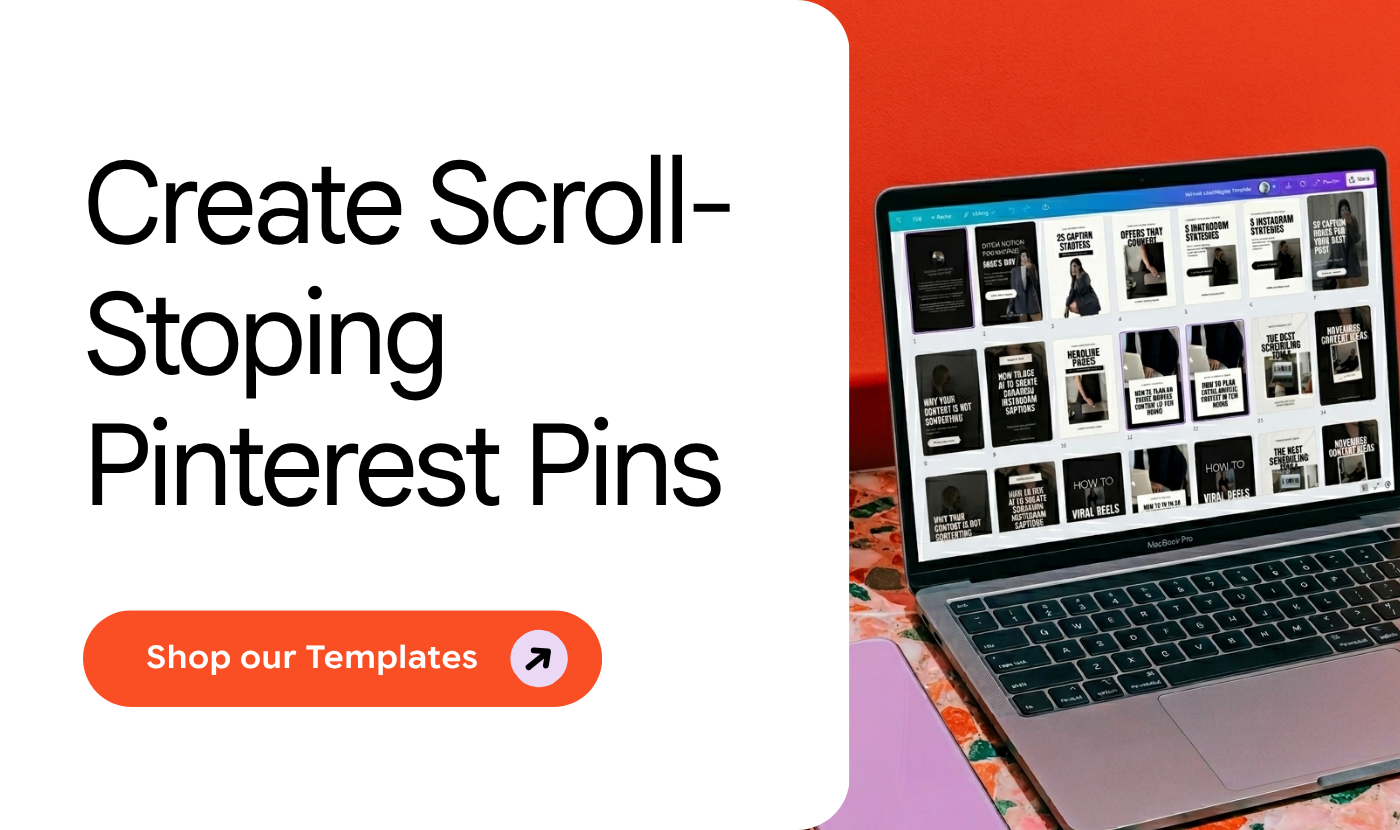
Canva for Pinterest Template Design
Canva is the easiest way to create Pinterest graphics—especially if you’re not a designer.
Use pre-made templates to speed up your workflow and maintain a consistent brand aesthetic.
Grab our Minimal Pinterest Canva Templates to get started.
Pininspector for Pinterest Keyword Research
Pininspector helps you find the exact keywords your audience is searching for on Pinterest.
It shows search volume, competition, and trending topics so you can optimise your pins for maximum visibility.
RELATED: Pinterest Keyword Strategy: What to Pin to Get Found in 2026
BlogtoPin for Pinterest Automation and Scheduling
Instead of using Tailwind, I recommend BlogtoPin as one of the best Pinterest tools to automate the entire pinning process.
It pulls content directly from your blog, creates multiple pin variations, and schedules them over time.
Set it up once, and let it run on autopilot.
ChatGPT for Pin Copy and Ideas
Use AI to generate pin title variations, description copy, and keyword ideas.
Our ChatGPT Prompts for Pinterest Marketing freebie includes plug-and-play prompts to speed up your workflow.
Your 30-Minute Pinterest Workflow (Step-by-Step Recap)
Let’s bring it all together.
Here’s your simple, repeatable process for creating 50 viral-worthy pins in 30 minutes:
Minute 0-10: Template Setup
- Open your Canva template pack.
- Duplicate your base templates until you have 50 versions for this blog post.
- Move them into a clearly named folder for that post.
- Rename each file with a consistent naming convention, such as “Blog‑Post‑Title‑Pin‑01”.
Minutes 10-20: Design Customisation
- Swap headlines across 50 pins
- Rotate colours, images, and text placement
- Keep edits small but impactful
- Use ChatGPT to generate headline variations
Minute 20-30: Optimisation & Scheduling
- Research keywords with Pininspector
- Write keyword-rich titles and descriptions
- Add 5-10 relevant hashtags per pin
- Schedule pins in BlogtoPin for consistent posting
That’s it. 30 minutes. 50 pins. Done.
Why This System Works (And Why You Should Start Today)
Pinterest isn’t just another social media platform. It’s a search engine that drives passive, long-term traffic to your blog.
But only if you play the game right.
Creating 50 pins for one blog post might sound like overkill, but it’s the difference between getting 100 visitors and getting 10,000.
When you create more high‑quality pins for one strong blog post, you give Pinterest more chances to surface your content and send you clicks.
And with this 30-minute system, you can batch create an entire month’s worth of pins in one sitting.
No more spending hours designing individual graphics. No more wondering why your traffic isn’t growing.
Just a simple, repeatable process that actually works.
Your blog deserves to be seen. Pinterest can make that happen—if you’re willing to show up strategically.
So grab your templates, open Canva, and start creating.
Start with one blog post and 10 pins using this system, then repeat it next week.
Your future self (and your traffic stats) will thank you.
Ready to simplify your Pinterest strategy?
Grab my ChatGPT Prompts for Pinterest Marketing and start creating viral-worthy pins today.





